Developer Guide
- Acknowledgements
- Setting up, getting started
- Design
- Implementation
- Documentation, logging, testing, configuration, dev-ops
- Appendix: Requirements
- Appendix: Instructions for manual testing
- Appendix: Planned Enhancements
Acknowledgements
- This project is based on the AddressBook-Level3 project created by the SE-EDU initiative.
Libraries
Setting up, getting started
Refer to the guide Setting up and getting started.
Design
 Tip: The
 .puml files used to create diagrams are in this document docs/diagrams folder. Refer to the PlantUML Tutorial at se-edu/guides to learn how to create and edit diagrams.
Architecture
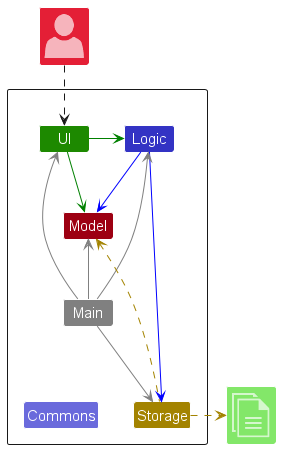
The Architecture Diagram given above explains the high-level design of the App.
Given below is a quick overview of main components and how they interact with each other.
Main components of the architecture
Main (consisting of classes Main and MainApp) is in charge of the app launch and shut down.
- At app launch, it initializes the other components in the correct sequence, and connects them up with each other.
- At shut down, it shuts down the other components and invokes cleanup methods where necessary.
The bulk of the app’s work is done by the following four components:
-
UI: The UI of the App. -
Logic: The command executor. -
Model: Holds the data of the App in memory. -
Storage: Reads data from, and writes data to, the hard disk.
Commons represents a collection of classes used by multiple other components.
How the architecture components interact with each other
The Sequence Diagram below shows how the components interact with each other for the scenario where the user issues the command delete 1.
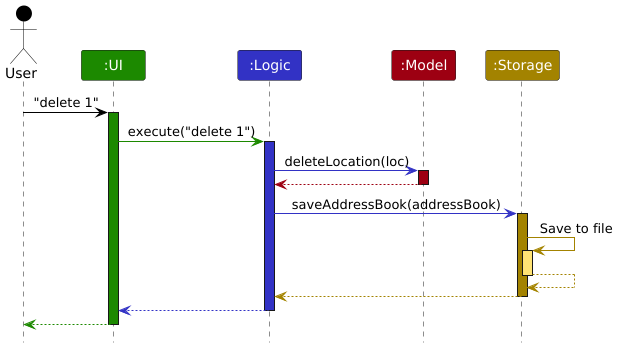
Each of the four main components (also shown in the diagram above),
- defines its API in an
interfacewith the same name as the Component. - implements its functionality using a concrete
{Component Name}Managerclass (which follows the corresponding APIinterfacementioned in the previous point.
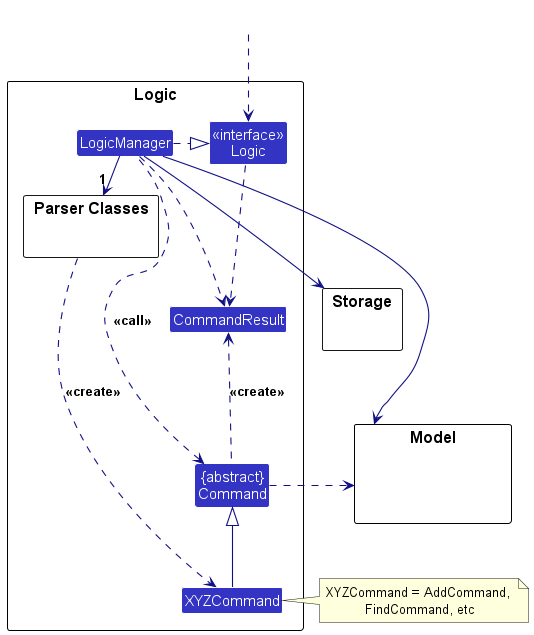
For example, the Logic component defines its API in the Logic.java interface and implements its functionality using the LogicManager.java class which follows the Logic interface. Other components interact with a given component through its interface rather than the concrete class (reason: to prevent outside component’s being coupled to the implementation of a component), as illustrated in the (partial) class diagram below.
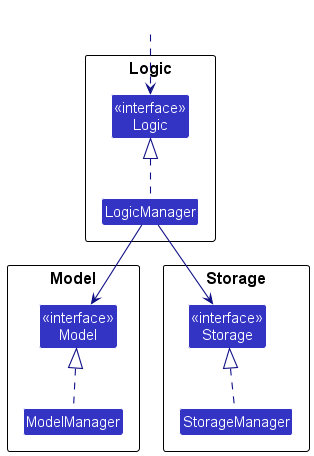
The sections below give more details of each component.
UI component
The API of this component is specified in Ui.java
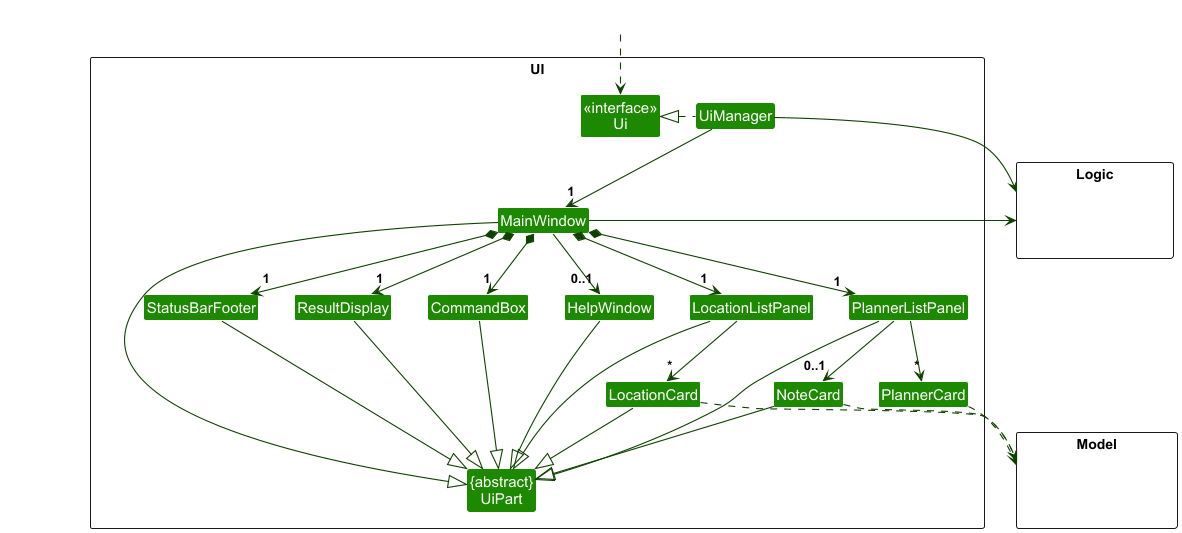
The UI consists of a MainWindow that is made up of parts e.g.CommandBox, ResultDisplay, LocationListPanel, StatusBarFooter etc. All these, including the MainWindow, inherit from the abstract UiPart class which captures the commonalities between classes that represent parts of the visible GUI.
The UI component uses the JavaFx UI framework. The layout of these UI parts are defined in matching .fxml files that are in the src/main/resources/view folder. For example, the layout of the MainWindow is specified in MainWindow.fxml
The UI component,
- executes user commands using the
Logiccomponent. - listens for changes to
Modeldata so that the UI can be updated with the modified data. - keeps a reference to the
Logiccomponent, because theUIrelies on theLogicto execute commands. - depends on some classes in the
Modelcomponent, as it displaysLocationobject residing in theModel.
Logic component
API : Logic.java
Here’s a (partial) class diagram of the Logic component:
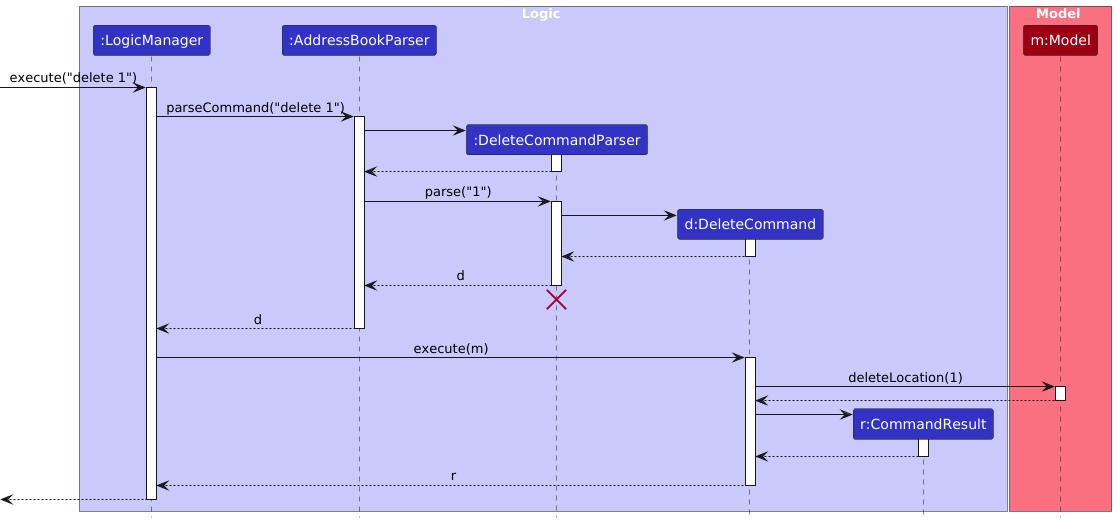
The sequence diagram below illustrates the interactions within the Logic component, taking execute("delete 1") API call as an example.
 Note: The lifeline for
 DeleteCommandParser should end at the destroy marker (X) but due to a limitation of PlantUML, the lifeline continues till the end of diagram.
How the Logic component works:
- When
Logicis called upon to execute a command, it is passed to anAddressBookParserobject which in turn creates a parser that matches the command (e.g.,DeleteCommandParser) and uses it to parse the command. - This results in a
Commandobject (more precisely, an object of one of its subclasses e.g.,DeleteCommand) which is executed by theLogicManager. - The command can communicate with the
Modelwhen it is executed (e.g. to delete a location).
Note that although this is shown as a single step in the diagram above (for simplicity), in the code it can take several interactions (between the command object and theModel) to achieve. - The result of the command execution is encapsulated as a
CommandResultobject which is returned back fromLogic.
Here are the other classes in Logic (omitted from the class diagram above) that are used for parsing a user command:
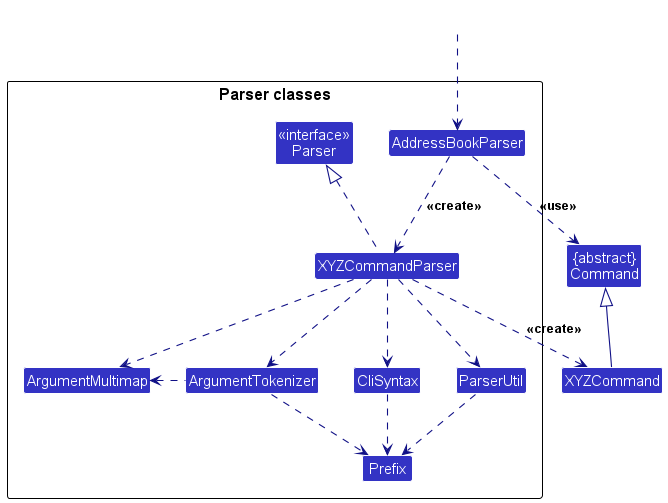
How the parsing works:
- When called upon to parse a user command, the
AddressBookParserclass creates anXYZCommandParser(XYZis a placeholder for the specific command name e.g.,AddCommandParser) which uses the other classes shown above to parse the user command and create aXYZCommandobject (e.g.,AddCommand) which theAddressBookParserreturns back as aCommandobject. - All
XYZCommandParserclasses (e.g.,AddCommandParser,DeleteCommandParser, …) inherit from theParserinterface so that they can be treated similarly where possible e.g, during testing.
Model component
API : Model.java
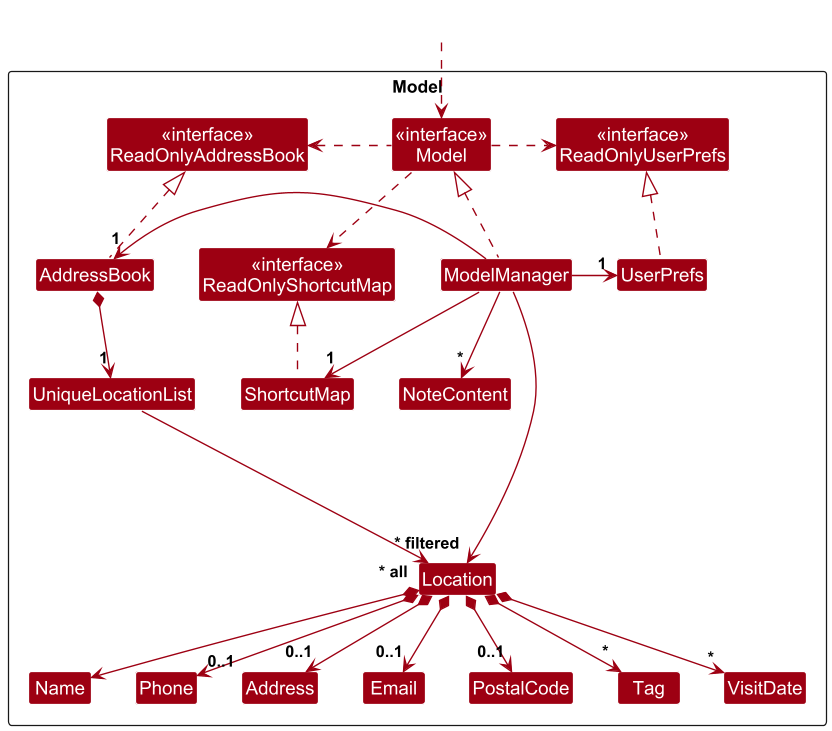
The Model component,
- stores the address book data i.e., all
Locationobjects (which are contained in aUniqueLocationListobject). - stores the currently displayed
Locationobjects as a separate filtered list which is exposed to outsiders as an unmodifiableObservableList<Location>that can be observed, e.g. the UI can be bound to this list so that the UI automatically updates when the data in the list changes. - stores the planner locations as a separate filtered list based on the selected date.
- stores a
UserPrefsobject that represents the user’s preferences. This is exposed to the outside as aReadOnlyUserPrefsobject. - stores a
ShortcutMapobject that represents the user-defined shortcuts. This is exposed to the outside as aReadOnlyShortcutMapobject. - manages note data used by the planner through
NoteContent. - does not depend on any of the other three components, as the
Modelrepresents domain entities that should make sense on their own.
Storage component
API : Storage.java
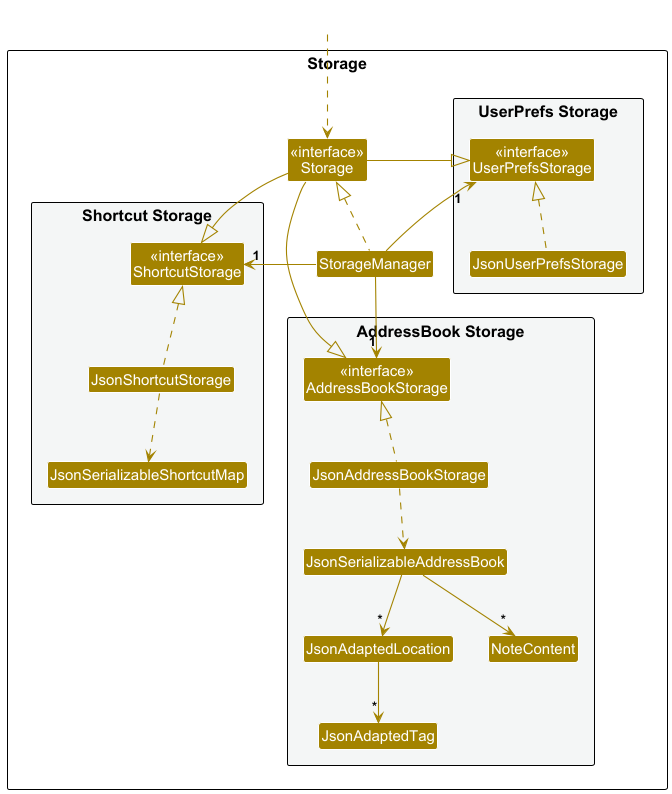
The Storage component,
- can save address book data, planner notes, user preference data, and shortcut mappings in JSON format, and read them back into corresponding model objects.
- exposes the
Storageinterface, which extendsAddressBookStorage,UserPrefsStorage, andShortcutStorage, so clients can depend on either the unified API or a narrower storage interface when needed. - is implemented by
StorageManager, which delegates each persistence concern toJsonAddressBookStorage,JsonUserPrefsStorage, andJsonShortcutStoragerespectively. - persists planner notes as part of the address book data.
JsonSerializableAddressBookstores them in a top-levelnotesJSON object that maps eachVisitDatedata string to itsNoteContenttext, so notes are saved and loaded together with locations throughAddressBookStorage. - depends on classes in the
Modelcomponent because it serializes and deserializes model-owned data such as the address book, planner notes, user preferences, and shortcut map.
Common classes
Classes used by multiple components are in the seedu.address.commons package.
Implementation
This section describes some noteworthy details on how certain features are implemented.
VisitDates
VisitDates in AddressMe have many different behaviours, possibly being recurring, or one-time. It is implemented using polymorphism, where the subclasses support the few abstract methods required to function. The VisitDate class is also implemented as a factory, taking in Strings to return a VisitDate of its appropriate subclasses.
- The isOn() function returns true if the date falls on the VisitDate inputted
- toString() returns a nicely formatted string displayed to the user
- toDataString() returns a string that can be re-parsed into the VisitDate, and is used to store data as files.
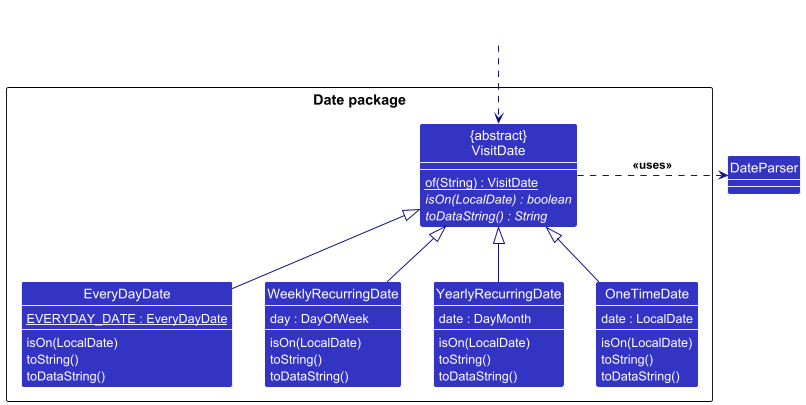
To note: EveryDayDate uses the Singleton pattern as every EveryDayDate should be the same. It has a public static EverydayDate as an attribute for access.
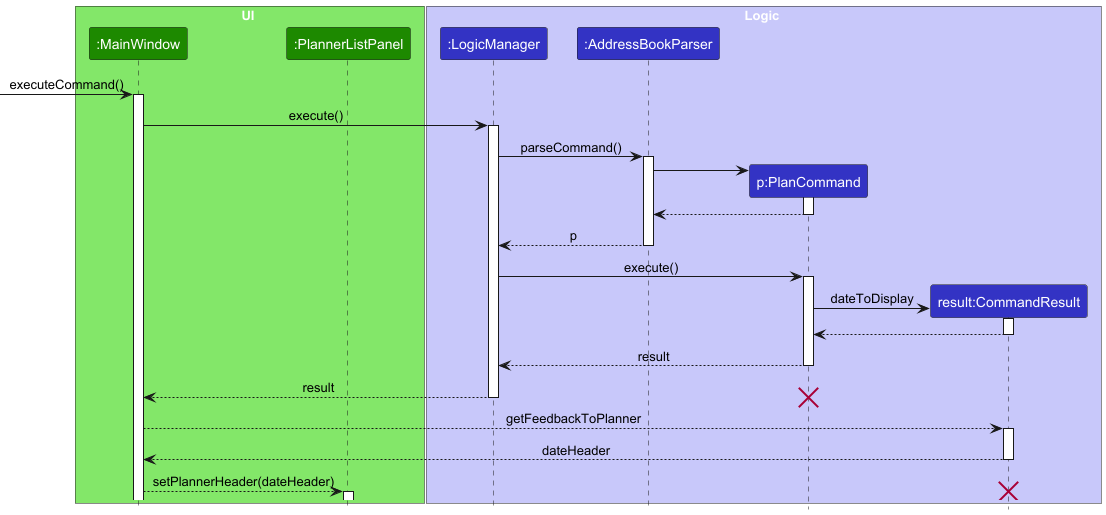
PlanCommand MCV Patterns
The plan command updates the user’s GUI as well as the headers. This means it needs to pass information
to the view controllers. We do this via the CommandResult class.
Undo/redo feature
Implementation
Undo/redo is implemented as a single-level snapshot mechanism in ModelManager, scoped to undoable application state.
Each snapshot stores a copy of the AddressBook and ShortcutMap.
| Snapshot | Purpose |
|---|---|
pendingState |
Pre-command snapshot captured before a mutating command executes. |
undoState |
Last committed snapshot that undo can restore. |
redoState |
Last undone snapshot that redo can restore. |
-
Model#saveState()captures the pending snapshot -
Model#commitState()promotes it toundoStateonly if the command changed undoable state -
Model#discardState()drops it after a failed command -
Model#undoState()andModel#redoState()restore stored snapshots while saving the current state to the opposite snapshot slot.
LogicManager#execute(...) coordinates snapshot handling centrally, as shown below:
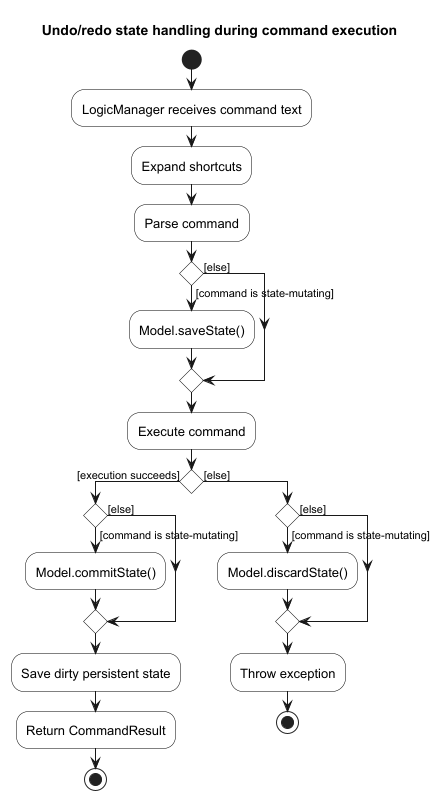
undo and redo are not treated as state-mutating commands in this flow. Instead, UndoCommand and RedoCommand
check whether their respective snapshots exist, then call Model#undoState() or Model#redoState() directly.
-
add,edit,delete,clear,note,shortcut setandshortcut removereturntrueforisStateMutating(). - Non-mutating commands such as
list,findandplando not change undo/redo history.undoandredothemselves also do not create new history entries.
Persistence is tracked separately from undo/redo history. ModelManager maintains dirty flags for the address book,
shortcut map, and user preferences, and LogicManager only saves the storage slices that have unsaved changes after a
successful command. As a result, read-only commands such as list, find, and plan do not trigger unnecessary disk
writes, while commands such as theme, undo, and redo still persist the correct data.
Behavior
The implementation is intentionally limited to one level:
- After one successful undo, there is no further undo available until another successful undoable change happens.
- Redo is available after a successful undo until another successful undoable change happens.
- A new successful undoable command clears the redo snapshot.
- Commands that succeed without changing undoable state, such as
clearon an already empty address book, do not consume the undo/redo slots.
Design considerations
Aspect: Snapshot granularity
-
Alternative 1 (current choice): Save the whole undoable app state.
- Pros: Small implementation surface, keeps command classes simple, and supports address book and shortcuts uniformly.
- Cons: Uses more memory than command-specific inverse operations.
-
Alternative 2: Each command stores enough information to reverse itself.
- Pros: Potentially more efficient and more flexible for future multi-level history.
- Cons: Higher implementation risk because every mutating command must define and maintain its own inverse logic.
Aspect: Where to trigger snapshotting
-
Alternative 1 (current choice): Centralize snapshot orchestration in
LogicManager.- Pros: Mutating commands only need to declare that they change undoable state; failed commands can be handled consistently in one place.
- Cons: Adds a small amount of command metadata via
isStateMutating().
-
Alternative 2: Let each command decide when to save snapshots.
- Pros: Commands can create a snapshot at very precise points in execution.
- Cons: Easier to forget in new commands, and failure handling becomes duplicated across commands.
Substring Matching in Find Command
Implementation
The substring matching feature for the find command enables users to search for locations by matching any substring of their name, rather than requiring full word matches.
Design Overview:
The implementation involves three key components:
-
StringUtil - Low-level utility class that handles substring matching
- Added new method:
containsSubstringIgnoreCase(String sentence, String substring) - Performs case-insensitive substring matching using
String.toLowerCase().contains() - Validates input (null checks, empty string checks)
- Added new method:
-
NameContainsKeywordsPredicate - Filtering logic at the model layer
- Located in
seedu.address.model.locationpackage (works withLocationobjects) - Modified
test()method to usecontainsSubstringIgnoreCase()instead ofcontainsWordIgnoreCase() - Maintains OR search logic: multiple keywords return matching locations if ANY keyword matches
- Each keyword can now be a substring
- Located in
-
FindCommand - Command execution layer
- No changes needed; works seamlessly with the updated predicate
- Reports filtered results to the UI through the model’s filtered location list
Sequence Flow:
User Input: "find Jo"
    ↓
FindCommandParser → Creates FindCommand with NameContainsKeywordsPredicate(["Jo"])
    ↓
FindCommand.execute() → Calls Model.updateFilteredLocationList(predicate)
    ↓
NameContainsKeywordsPredicate.test(location) → For each location, checks:
    - containsSubstringIgnoreCase("John Restaurant", "Jo") → true ✓
    - containsSubstringIgnoreCase("Jane Cafe", "Jo") → false ✗
    ↓
Result: "John Restaurant" is included in filtered list
Key Changes:
| Component | Old Behavior | New Behavior |
|---|---|---|
StringUtil |
containsWordIgnoreCase() only (full word match) |
Added containsSubstringIgnoreCase() (substring match) |
NameContainsKeywordsPredicate |
Uses containsWordIgnoreCase() with Person
|
Uses containsSubstringIgnoreCase() with Location
|
| Find Command |
find Hans ❌ matches partial name |
find Han ✓ matches Hans Restaurant
|
Design Considerations:
Aspect: Substring vs. Full Word Matching
-
Alternative 1 (current choice): Substring matching (case-insensitive)
- Pros: More flexible search; users can find locations with partial input (e.g., “Jo” matches “John’s Restaurant”, “Johan’s Cafe”, “Joust Arena”)
- Pros: Simple to implement using
String.contains() - Cons: May return more results than user expects (e.g., “e” matches many location names)
-
Alternative 2: Full word matching only (previous implementation)
- Pros: More precise results; reduces false positives
- Cons: Less flexible; requires exact word matches
- Cons: Inconvenient for users who don’t remember exact names
-
Alternative 3: Regex-based matching
- Pros: Maximum flexibility for complex patterns
- Cons: Higher complexity; potential performance overhead
- Cons: Poor user experience for non-technical users
Aspect: Search Scope
-
Current choice: Search only in location names
- Pros: Focused search; reduces noise
- Cons: Cannot search by address, phone, email, tags, etc.
- Future enhancement: Support for multi-field search (e.g., find by category tags, address, or distance)
Testing Strategy:
Comprehensive test coverage includes:
-
Unit Tests (
StringUtilTest):- Substring at prefix, middle, suffix positions
- Case-insensitive matching
- Empty string and null validation
-
Component Tests (
NameContainsKeywordsPredicateTest):- Single and multiple substring keywords
- OR logic verification
- Non-matching scenarios
-
Integration Tests (
FindCommandTest,FindCommandParserTest):- End-to-end find command execution
- Parser correctly handles substring keywords
- Multiple locations matching different keywords
- Test data includes typical locations (e.g., restaurants, attractions, hotels)
Multi-Date Support
Implementation
The multi-date support feature allows a Location to have multiple visit dates. This is useful for users who visit the same location multiple times.
Design Overview:
-
Location Model
- Changed
visitDatefield from a singleVisitDateobject to aSet<VisitDate>. - Updated constructor and getters to handle the set of visit dates.
- Changed
-
Predicate Logic
- Updated
VisitDateMatchesKeywordsPredicateto check if a given date is present in theSet<VisitDate>of aLocation. - The search follows AND logic for multiple date prefixes: a location must have all the specified dates to match.
- Updated
-
Parser Support
- Updated
AddCommandParserandEditCommandParserto handle multipled/prefixes. -
EditCommandnow supportsd/(overwrite all),d+/(add specific dates), andd-/(remove specific dates).
- Updated
-
Storage Compatibility
- Updated
JsonAdaptedLocationto handle both the old singlevisitDatefield and the newvisitDatesarray in the JSON file. - This ensures that users can upgrade to the new version without losing their existing data.
- Updated
Key Changes:
| Component | Old Behavior | New Behavior |
|---|---|---|
Location |
Single VisitDate
|
Set<VisitDate> |
FindCommand |
Matches single last visit date | Matches if ANY visit date matches the keyword |
EditCommand |
Overwrites single visit date | Supports cumulative add/remove or overwrite |
Storage |
Saves/loads visitDate
|
Saves/loads visitDates (with backward compatibility) |
Help Message Consistency
Help messages were made more consistent by using two standardized formats:
- a compact
Parameters/Exampleformat for single-purpose commands - a Usage-based format for commands with multiple forms
Typical structure:
Single-purpose commands:
command: description
Parameters: ...
Example: ...
Multi-purpose commands:
command: description
Usage:
  command form 1 – description
  command form 2 – description
Examples:
  example 1
  example 2
This improves readability without forcing all commands into one rigid structure.
Commands such as help, note, and shortcut has all their modes specified in the Usage format with more than one example, while simpler commands remain concise.
Documentation, logging, testing, configuration, dev-ops
Appendix: Requirements
Product scope
Target user profile:
- is a backpacker or traveller
- has a need to systematically catalogue multiple travel destinations and points of interest
- prefers lightweight desktop tools over visual-heavy travel apps
- can type fast and values high-efficiency, keyboard-driven workflows
- prefers typing to mouse interactions
- is comfortable using CLI applications for structured and searchable itinerary planning
Value proposition: It allows for much more efficient searching for destinations and planning routes between points, and a much more accessible and seamless UI for users to list, edit or delete the destinations (by contacts and address) they are interested in for overseas trips, leisure or social visits.
User stories
Priorities: High (must have) - * * *, Medium (nice to have) - * *, Low (unlikely to have) - *
| Priority | As a … | I want to … | So that I can… |
|---|---|---|---|
* * * |
user | add a new record with its address and contact details | have a central record of where to go next |
* * * |
user | delete an existing record | remove unwanted entries |
* * * |
user | exit the program | - |
* * * |
user | save my data | revisit the app |
* * * |
user | edit details of a saved place | correct or update information |
* * * |
experienced user | use up and down arrows to echo my past commands | quickly retry commands that have a minor mistake |
* * * |
user | save my friends’ addresses | easier meetups and not have to store them separately from my travels |
* * * |
student | handle my classwork that requires moving to mobile places | have a better plan without being confused about where to go next |
* * * |
busy user | Organize my locations by dates | remember where I have to be on a certain day |
* * * |
user | View a schedule for my locations by date | be more organized |
* * |
user | add keywords/notes to specific addresses | remember the details easily |
* * |
experienced user | set shortcuts for my commands | use the app more efficiently |
* * |
frequent user | save shortcuts across restarts | avoid recreating them every time I open the app |
* * |
user | mark my destinations with dates | get an overview of the whole day |
* * |
food explorer | manage restaurant recommendations | easily keep track of their addresses and opening hours |
* * |
food explorer | group restaurant recommendations | sort them out by preference/some other metric |
* * |
new user | view a help message explaining the keyboard commands | quickly learn how to use the app |
* * |
tech-savvy user | use a single keyboard command to search for all “sightseeing” spots | find my next destination fast and easily |
* * |
hasty user | quickly navigate my previous commands | repeat my frequent commands and save time typing |
* * |
cautious solo traveller | store emergency contacts (embassy, hospital, local police) | access them quickly in urgent situations |
* * |
user | change the application’s colour (light/dark mode) | read the content comfortably |
* * |
user | pin important locations | quickly see my highest-priority entries |
* * |
user with poor eyesight | change my font size | see the content clearly |
* * |
user | edit phone numbers or addresses easily | outdated contact details do not mislead me |
* * |
clumsy user | undo my previous actions | rectify any accidental commands |
* * |
frequent traveller | store different time zones | avoid making calls at inappropriate timings |
* * |
solo traveller | mark places as favorites | prioritize places I do not want to miss |
* * |
user | archive places I have already visited | keep my active list uncluttered |
* * |
user | search for keywords in my contacts/addresses | find one/several particular addresses without manual searching |
* * |
user | tag different places based on groups (restaurants, attractions, hotels) | filter for the type of location I am looking for |
* * |
concerned user | mark destination information as verified or unverified | remember which destinations I have personally confirmed |
* |
user | group my destinations logically or manually | view related destinations together |
* |
user | sort saved places by distance | optimize my walking route and avoid backtracking |
* |
frequent planner/traveller | reliably set repeat trips (e.g. every second Sunday I’m going home) | maintain regular routines like visiting family or planning frequent outings |
* |
user | attach notes to the places I’ve been | remember if I enjoyed the place, or never want to go back |
* |
user | see my destinations in a schedule view | easily visualize my itinerary |
* |
user | attach and record my expenses | manage my budget |
* |
dark mode user | use the app in dark mode | keep it consistent with the rest of my setup |
* |
parent | organize my trip together with different users (family, friends, tour agency) | allow them to contribute ideas/routes for my trip |
Use cases
(For all use cases below, the System is AddressMe and the Actor is the user, unless specified otherwise)
Use case: Add a location
MSS
- User inputs the details of a location.
- User submits the details to the system.
- System confirms the addition.
- System shows the updated list. Use case ends.
Extensions
- 2a. The given details are invalid.
- 2a1. System shows an error message, and if it can handle gracefully with incomplete data, will show the details it managed to add. Use case resumes at step 3.
- 2b. The given location name is invalid.
- 2b1. System shows an error message and informs the user it is unable to add the entry. Use case ends.
Use case: Shorten/specify own commands to enhance usage speed
MSS
- User requests to create a shortcut for an existing command.
- System validates the shortcut and the referenced command.
- System saves the shortcut.
- System confirms that the shortcut has been created. Use case ends.
Extensions
- 2a. The alias violates validation constraints.
(e.g. contains illegal characters, matches a reserved keyword, or conflicts with an existing alias)
- 2a1. System rejects the request and shows an appropriate error message. Use case ends.
- 2b. The referenced command word is invalid.
- 2b1. System shows an error message indicating that the command is invalid. Use case ends.
- 3a. Saving the shortcut fails due to a storage I/O error.
- 3a1. System shows an error message and does not persist the shortcut. Use case ends.
Use case: Edit a location
MSS
- User requests to edit a specific location in the list by providing its index and the new details to be updated.
- System updates the location and shows a success message with the updated details. Use case ends.
Extensions
- 1a. The given index is out of range.
- 1a1. System shows an invalid index error message. Use case resumes at step 1.
- 1b. The given index is not a valid integer.
- 1b1. System shows an invalid command format error message. Use case resumes at step 1.
- 1c. The provided email format is invalid.
- 1c1. System shows an error message regarding the invalid email. Use case resumes at step 1.
- 1d. The provided phone number format is invalid.
- 1d1. System shows an error message regarding the invalid phone number. Use case resumes at step 1.
- 1e. The edited details result in a duplicate entry (it matches an existing entry’s name + phone/email).
- 1e1. System rejects the edit, leaves the original record unchanged, and shows an error message. Use case resumes at step 1.
Use case: List all locations
MSS
- User enters the list command.
- System shows a list of locations. Use case ends.
Extensions
- 2a. The list is empty.
- 2a1. System informs the user the list is empty. Use case ends.
Use case: Modify your schedule on a specific day
MSS
- User enters the plan command with the desired date.
- System shows all the locations that fall on that date.
- User edits a location to add it to the date.
- System shows the updated schedule on that day. Use case ends.
Extensions
- 1a. The entered date is invalid.
- 1a1. System informs the user of correct date and command format. Use case ends.
Use case: Save and exit
MSS
- User enters the exit command.
- System closes the application. Use case ends.
Use case: Delete one or more locations
MSS
- User requests to delete one or more locations by specifying their indices.
- System deletes all specified locations. Use case ends.
Extensions
- 1a. At least one given index is out of range.
- 1a1. System shows an invalid index error message. Use case resumes at step 1.
- 1b. Duplicate indices are provided (e.g.,
delete 2 2).- 1b1. System shows a duplicate indices error message. Use case resumes at step 1.
- 1c. At least one given index are not valid integers.
- 1c1. System shows an invalid command format error message. Use case resumes at step 1.
Use case: Undo the last change
MSS
- User executes a successful command.
- User wants to undo the command.
- System restores the previous state.
- System shows a success message. Use case ends.
Extensions
- 2a. There is no stored undo state.
- 2a1. System shows an error message. Use case ends.
Use case: Redo the last undone change
MSS
- User successfully undoes an undoable change.
- User wants to redo the change.
- System reapplies the undone state.
- System shows a success message. Use case ends.
Extensions
- 2a. There is no stored redo state.
- 2a1. System shows an error message. Use case ends.
Non-Functional Requirements
- Should work on any mainstream OS as long as it has Java
17or above installed. - Should be able to hold up to 1000 locations without a noticeable sluggishness in performance for typical usage.
- Should display a list of 1000 entries under 0.5 seconds when searching or using the “list” command.
- A user with above average typing speed for regular English text (i.e. not code, not system admin commands) should be able to accomplish most of the tasks faster using commands than using the mouse.
- Should work well for standard screen resolutions 1920x1080 and higher of 100% and 125% scales.
- Should be usable for resolutions 1280x720 and higher and for screen scales 150%.
Glossary
- Mainstream OS: Windows, macOS, and Linux.
- Location: A saved place in AddressMe together with its contact and address details.
- Tag: A label used to group similar saved locations.
Appendix: Instructions for manual testing
Given below are instructions to test the app manually.
Note: These instructions only provide a starting point for testers to work on;
testers are expected to do more exploratory testing.
Help Command
Viewing help information
-
Viewing general help
- Test case:
help
Expected: A summary of all commands is displayed in the help window or output area.
- Test case:
-
Viewing help for a specific command
- Test case:
help add
Expected: Detailed usage information for theaddcommand is displayed.
- Test case:
-
Opening the user guide
- Test case:
help -ug
Expected: The link to the user guide is opened in a new window.
- Test case:
-
Invalid usage
- Test case:
help unknowncommand
Expected: An error message is shown indicating the command is invalid.
- Test case:
Launch and shutdown
-
Initial launch
-
Download the jar file and copy into an empty folder
-
Run
java -jar AddressMe.jarin terminal. Expected: Shows the GUI with a set of sample contacts. The window size may not be optimum.
-
-
Saving window preferences
-
Resize the window to an optimum size. Move the window to a different location. Close the window.
-
Re-launch the app by double-clicking the jar file.
Expected: The most recent window size and location is retained.
-
Autocomplete
- Autocomplete a command with no shared prefix
- Press
Tabafter typinga. Expected: the command line now showsadd
- Press
- Autocomplete command with shared prefix
- Press
Tabafter typinge. Expected: the command line still showse(Sinceexitandeditexist)
- Press
CLI History
- Recalling previous commands
- With an empty command line, press
UPrepeatedly. Expected: Command line scrolls through previous commands - Now press
DOWNrepeatedly. Expected: Command line goes forward through commands and becomes blank again.
- With an empty command line, press
- Recalling commands after an error
- Enter an erroneous command (the text should turn red)
- Press
UPonce. Expected: Should see the command entered before the erroneous command.
Deleting a location
-
Deleting a location while all locations are being shown
-
Prerequisites: List all locations using the
listcommand. Multiple locations in the list. -
Test case:
delete 1
Expected: First contact is deleted from the list. Details of the deleted contact shown in the status message. Timestamp in the status bar is updated. -
Test case:
delete 1 2
Expected: First and second contacts are deleted from the list. Number of deleted locations shown in the status message. Timestamp in the status bar is updated. -
Test case:
delete 0
Expected: No location is deleted. Error details shown in the status message. Status bar remains the same. -
Other incorrect delete commands to try:
delete,delete x,delete 1 1,...(where x is larger than the list size)
Expected: Similar to previous.
-
Undoing and redoing changes
-
Undo after a successful modifying command
-
Prerequisites: Start with at least one location in the list.
-
Test case:
delete 1followed byundo
Expected: The deleted location reappears. A success message forundois shown. -
Test case:
clearfollowed byundo
Expected: All previously saved locations are restored. -
Test case:
shortcut set a addfollowed byundo
Expected: The shortcuta -> addis removed.
-
-
Undo when no undo state exists
-
Prerequisites: Fresh app start with no prior successful undoable command.
-
Test case:
undo
Expected: No data changes. An error message is shown.
-
-
Redo after undo
-
Prerequisites: Execute
add n/Test Place, thenundo. -
Test case:
redo
Expected:Test Placeis added back. A success message forredois shown. -
Test case:
redoagain
Expected: No data changes. An error message is shown because only one redo level is supported.
-
Using Planner Panel
- Viewing Locations and Notes
- After adding dates to locations and notes, use
plan DATEwhere DATE is the same date. Expected: The locations and notes added should appear in the planner and the header changes to DATE.
- After adding dates to locations and notes, use
- Changing entities with Planner open
-
deletea location ornote d-/a note currently in the open planner. Expected: The planner is updated and the entity disappears. -
undoyour action. Expected: The item reappears in the planner.
-
- Clearing the planner
- Type
planin the Command line. Expected: The planner is cleared and the header resets. The locations can still be view in the left list.
- Type
Flexible Name and Phone Input
-
Adding locations with flexible names
-
Test case:
add n/McDonald's @ Orchard a/Some address c/123456
Expected: Location is successfully added. -
Test case:
add n/!!! a/Some address
Expected: Error message shown (no alphanumeric character).
-
-
Adding locations with flexible phone numbers
-
Test case:
add n/Test p/+65 9123 1234
Expected: Location is successfully added. -
Test case:
add n/Test2 p/123-456-789Expected: Location is successfully added. -
Test case:
add n/Test3 p/-1234
Expected: Error message shown.
-
Editing Fields to Empty
-
Clearing a field using edit
-
Prerequisites: At least one location exists with a phone number
-
Test case:
edit 1 p/
Expected: Phone number of the location is removed. -
Test case:
edit 1 n/
Expected: Name cannot be empty, error message shown (if applicable).
-
Appendix: Planned Enhancements
Team size: 5
-
Support autocomplete for tags. Typing
t/a,t+/aort-/athen pressingTabwould autocomplete with any existing tags. This is done by having a persistent tag management system, storing tags in data files, and loading them into a TagManager class upon startup. - Currently, the implementation of different commands have slightly differing formats. Sometimes, commands take in strings with the
n/prefix, like inadd, but infindit does not. Then, inplanit doesn’t take in a date with thed/prefix either.
Standardise ALL commands to use the prefixes for every variable. This applies even forINDEX, with proposed tagi/. This makes it clearer to the user that every field must be prefixed. - Support data archiving/hiding. Old locations that is no longer needed can be archived for the future, so they don’t appear but still recoverable.
-
Implement a range for date fields in
planandfind. This can allow users to view plans over a weekend for example, or to find locations over a range too. - Add an archiving system to automatically manage past dates, enabling users to filter or hide outdated notes and locations.
-
Support multi-word shortcuts. Shortcuts could expand to full commands such as
shortcut set theme dark dark, so typingdarkrunstheme dark.