User Guide
FAST • FLEXIBLE • FOOLPROOF
Purpose-built, clutter-free itinerary planner designed for digital nomads
AddressMe helps you plan and track your travel destinations, dates, and important details in one convenient platform, optimised for use entirely through a Command Line Interface (CLI) with the benefits of a Graphical User Interface (GUI).
It offers a minimalist, easy-to-learn experience designed for digital nomads who need their location data to be structured and always accessible. If you can type quickly and get frustrated by over-engineered itinerary planners, AddressMe is the app for you!
Do you:
- Move regularly and need to track multiple locations and visit plans?
- Need your data even with unreliable internet?
- Prefer typing over clicking through menus?
- Feel frustrated by overly complicated itinerary planners?
If so, AddressMe is built for you!
Table of Contents
- 1. Quick Start
- 2. Starting to use Commands
-
3. Features - Full Reference
help- Viewing helpadd- Adding a locationlist- Listing all locationsfind- Filtering locations by attributesedit- Editing a locationdelete- Deleting a locationplan- Using the itinerary plannernote- Managing notesundo- Reverting the last changeredo- Redoing the last undoshortcut- Managing command shortcutstheme- Customize your applicationclear- Clearing all entriesexit- Exiting the program
- 4. Command summary
- 5. CLI Power Features
- 6. Data Management
- 7. FAQ & Known Issues
1. Quick Start
Installation
- Ensure you have Java
17or above installed on your machine.
You can do this by opening the Command Prompt app (for Windows users), or Terminal (for Mac/Linux users) and entering “java -version”.
- Download the latest version of
AddressMe.jarfrom the GitHub releases page here. - Place the AddressMe.jar file in a folder - this becomes your AddressMe home folder.
- While in your home folder, right-click and select “Open in Terminal”
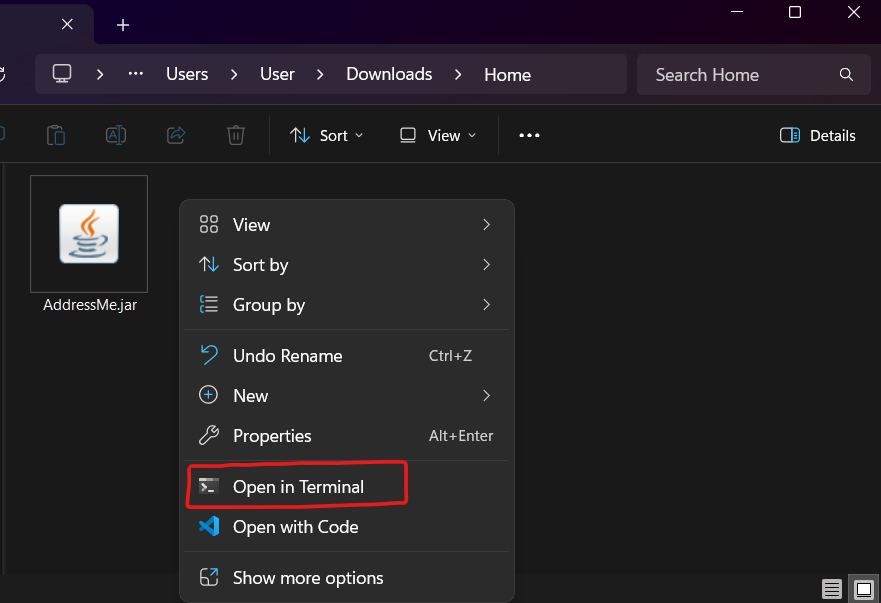
- Enter the following command into the terminal:
java -jar AddressMe.jar - That’s it! AddressMe launches with sample data, and you can plan your trip immediately.
 Mac users:
Ensure you have the exact Java JDK version here to avoid compatibility issues.
Interface Overview
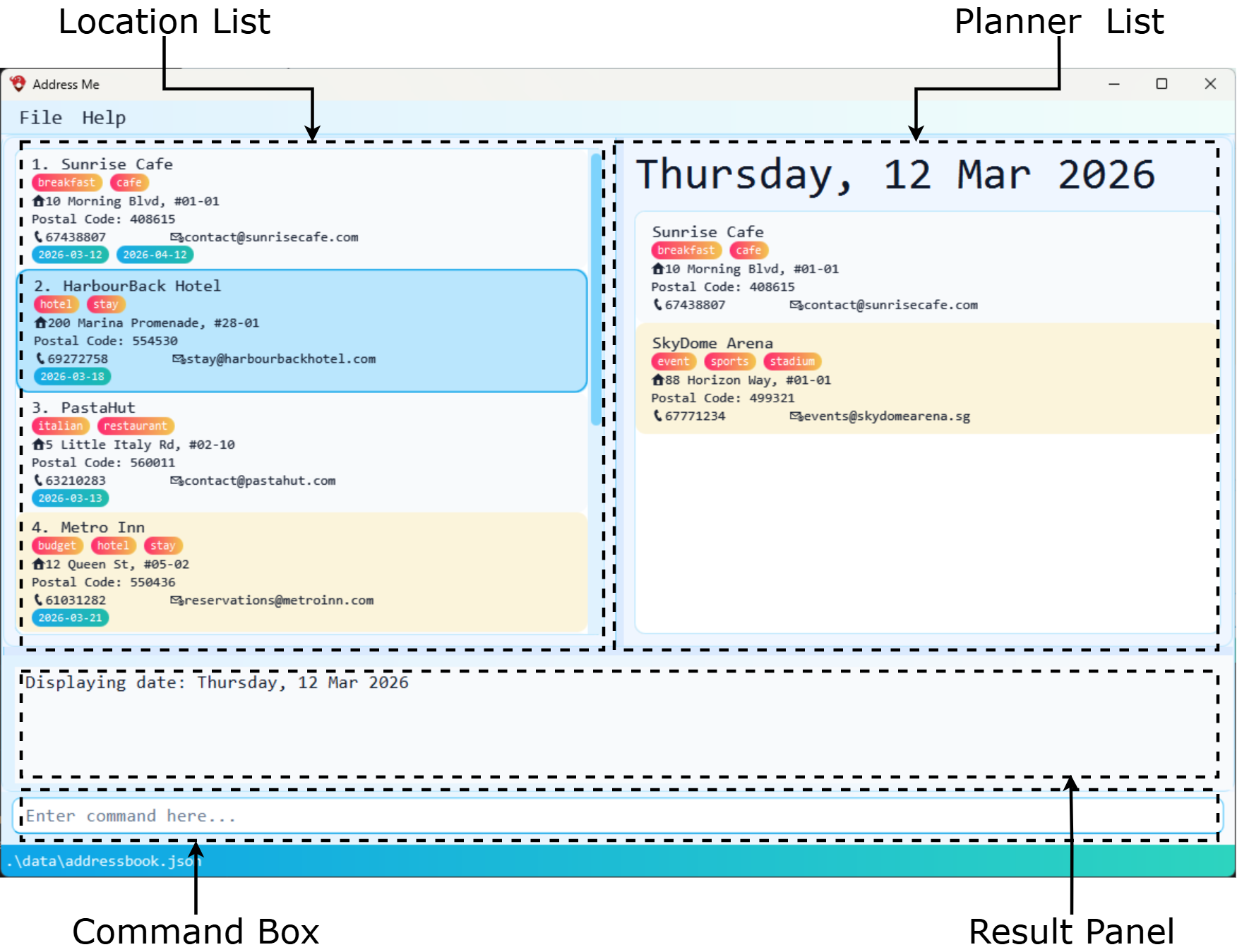
AddressMe has four main UI zones:
| Feature | Description |
|---|---|
| Command Box | Type your commands here and press Enter to execute. |
| Result Panel | Displays confirmation messages, search results, and errors encountered. |
| Location List | Shows all your saved locations, updated in real time after each command. |
| Planner List | View destinations and notes on a specific date (using the plan command). |
2. Starting to use Commands
Before we dive into each feature, here’s a tip to make everything smooth and easy.
Every command has a helpful guiding message:

A valid add command is shown below.

| Format | Description |
|---|---|
| UPPER_CASE | A value you must supply. e.g. NAME in add n/NAME means you type the actual name. e.g. “n/Nomad Hub“ |
| [Square brackets] | Optional parameters. You may include it or leave it out. E.g. “[e/EMAIL]“ is optional so we can leave it out. |
| t/TAG… | The ellipsis means you can submit more than one of these parameters. e.g. “t/workplace” OR “t/workplace t/networking“ |
| Any order | Parameters can be entered in any order unless specified otherwise. e.g. “t/workplace n/Nomad Hub” OR “n/Nomad Hub t/workplace” |
| Single-word commands | Some commands take no extra parameters, like help, list, exit, clear. |
Name Formats
Location names can include letters, numbers, spaces, and common symbols such as & @ ( ) [ ] . , - '.
The name must contain at least one letter or number (i.e. cannot consist only of symbols).
This allows realistic names such as AT&T Store or Raffles @ Marina.
These rules apply to all commands that use names (e.g. add, edit).
Phone Formats
Can start with + and may include spaces or hyphens between digits (e.g. 91231234, 9123 1234, +65 9124-1234).
Must contain at least 3 digits and be no longer than 15 characters.
Tag Formats
May include alphanumeric characters, spaces or hyphens.
Must contain at least one alphanumeric character.
All Tag inputs are translated and stored as lowercase.
Date Formats
AddressMe even accepts a large range of date inputs so you can type dates flexibly.
- Dates are separated with slashes (“/”) or hyphens (“-”).
- With day, month and year fully specified:
| With slashes | With hyphens |
|---|---|
| YYYY/MM/DD | YYYY-MM-DD |
| YYYY/M/D | YYYY-M-D |
| D/M/YYYY | D-M-YYYY |
| D/M/YY | D-M-YY |
- With day and month (no year): AddressMe picks the next occurrence of that date. For edge cases like 29 Feb, if it does not exist in the year, AddressMe gracefully corrects it to 28 Feb.
| With slashes | With hyphens |
|---|---|
| DD/MM | DD-MM |
| D/M | D-M |
- With day of the week (case-insensitive): AddressMe picks the upcoming date of that weekday.
| Long form | Short form (First 3 letters) |
|---|---|
| Monday - Sunday | Mon - Sun |
 Pro Tip - Fast Dates:
If today is Tuesday, typing
Pro Tip - Fast Dates:
If today is Tuesday, typing Tue matches today. Typing Wednesday or Wed matches tomorrow. Typing Mon matches next
Monday!Alternatively, typing
today also works!
-
Recurring Dates: You can mark locations with recurring dates by starting it with
e-orevery!DAY_MONTHandDAY_OF_WEEKaccepts the formats specified above.
| Recurring type | Format |
|---|---|
| Everyday |
everyday or every day (case-insensitive) |
| Weekly |
e-DAY_OF_WEEK, every DAY_OF_WEEK Example: edit 1 d/e-Sun edits a location to happen every Sunday |
| Yearly |
e-DAY_MONTH, every DAY_MONTH Example: add n/Mom's House d/every 25/12 adds an entry that happens every 25 December. |
Start Your First Commands
Now that you’re familiar with commands, try typing these commands into AddressMe to get a feel for the application.
list
Shows all saved locations.
find Cafe
Searches for any location with ‘Cafe’ in its name.
add n/Nomad Hub e/hello@nomadhub.com a/12 Tanjong Pagar t/coworking
Adds a new coworking space.
plan 2026-04-01
Shows your itinerary plan for 1 April 2026.
exit
Closes the application.
When you’re comfortable with sending commands, you’re ready to dive deeper into each feature!
3. Features - Full Reference
If you are already familiar with the commands, skip straight to the command summary to refresh your memory!
help - Viewing help
Shows you commands you can use, as well as how to use specific commands.
Formats:
help
help COMMAND_WORD
help -ug
-
helpdisplays a summary of all supported commands in AddressMe. -
help COMMAND_WORDdisplays detailed local guidance for that command.
COMMAND_WORDmust be an existing built-in command word.
Examples:
-
help addshows the specific usage for theaddcommand. -
help -ugopens the help window for the link to the online User Guide (see below).

Tip:
If you minimise the Help window and run help again, the minimised window will not reappear automatically. Restore it manually from your taskbar.
add - Adding a location
Saves a new location to your address book, with optional visit dates and tags for easy retrieval later.
Format: add n/NAME [p/PHONE_NUMBER] [e/EMAIL] [a/ADDRESS] [c/POSTAL_CODE] [d/DATE]... [t/TAG]...
 Field Guide:
n/: Name of the location (e.g. the cafe, clinic, or coworking space).
Letters, numbers and some common symbols are allowed. See name format for details.
p/: Phone number - accepts any supported phone format.
e/: Email address.
a/: Street address.
c/: Postal code - must be alphanumeric and shorter than 16 characters.
d/: Visit date - accepts any supported date format. Repeat for multiple dates.
t/: Tag for categorisation (e.g. halal, coworking, pharmacy). Repeat for multiple tags.
Examples:
-
add n/Nomad Hub p/9876-5432 e/hello@nomadhub.com a/12 Tanjong Pagar d/every day t/coworking
add n/Al-Azhar Restaurant p/+65 63910060 e/contact@alazhar.sg a/18 Arab St t/halal t/dinner d/Friday
Tip:
A location can have any number of tags and visit dates - including none at all. You can always add them later using the edit command.
list - Listing all locations
Displays every saved location in the Location List. Use this to reset the view after a find command.
Format: list
find - Filtering locations by attributes
Your most powerful command. Searches across names, addresses, tags, phone numbers, emails, and visit dates. Multiple conditions are combined with AND logic - the more specific you are, the more precise your results.
Format: find [KEYWORD] [MORE_KEYWORDS] [n/NAME] [p/PHONE] [e/EMAIL] [a/ADDRESS] [c/POSTAL_CODE] [t/TAG] [d/DATE]
How Search Works
| Feature | Description |
|---|---|
| Unprefixed keywords | OR logic on name. find ramen cafe will returns locations containing ‘Ramen’ OR ‘Cafe’. |
| n/, p/, e/, a/, c/ | Substring match. n/Bak returns ‘Bakery’, ‘Al-Bakar’, ‘Bak Kut Teh’. |
| t/TAG | Exact match (case-insensitive). Must match the full tag. t/hal does not match ‘halal’. |
| d/DATE | Accepts any non-recurring date format supported by AddressMe. |
| Multiple prefixes | AND logic. n/Cafe t/Halal t/Vegetarian returns cafes that are ALSO tagged halal and vegetarian. |
| Multiple dates | AND logic. d/2026-04-01 d/2026-05-01 returns locations with BOTH dates on record. |
Details:
- The search is case-insensitive. e.g
thaiwill matchThai Pavilion - The order of the keywords does not matter. e.g.
Restaurant Marinawill matchMarina Restaurant. - Each prefixed value (
n/,p/, ect…) is treated as a single search token, even if it contains spaces.
Examples:
-
find Restaurantreturns all locations with “Restaurant” in the name -
find Marina BeachreturnsMarina Park,Beach Resort(OR search for names). -
find n/Cafe e/gmail.comreturns all cafes with a Gmail address.
edit - Editing a location
Updates one or more fields of a saved location.
Format:
edit INDEX [n/NAME] [p/PHONE] [e/EMAIL] [a/ADDRESS] [c/POSTAL_CODE] [d/DATE]… [d+/DATE]… [d-/DATE]… [t/TAG]… [t+/TAG]… [t-/TAG]…
- Edits the location at the specified
INDEX. The index refers to the index number shown in the displayed location list. The index must be a positive number 1, 2, 3, … - At least one of the optional fields must be provided.
- Existing values will be updated to the input.
- To clear a field, provide the prefix without a value (e.g.
p/to clear phone). - This applies to optional fields such as phone, email, postal code and address.
Tag and Date Editing Modes
| Feature | Description |
|---|---|
| t/ or d/ | Replace ALL existing tags or dates. t/ with no value clears all tags. |
| t+/ or d+/ | Add one or more tags or dates without removing existing ones. |
| t-/ or d-/ | Remove a specific tag or date without affecting others. |
Tags behave as a set (no duplicates, order does not matter).
- Duplicate tags provided in
addoreditcommands are ignored. - When using
t-/ord-/, if a specified tag or date does not exist, it is ignored and the command still succeeds.
When both t+ and t-/ are used in the same command, removal takes precedence.
If a tag appears in both t+/ and t-/, it will be removed.
This also applies to existing tags — if a tag already exists and is both added and removed in the same command, it will still be removed.
You cannot mix t/ with t+/ or t-/ in the same command. Similarly, d/ cannot be combined with d+/ or
d-/. AddressMe will reject the command.
Examples:
-
edit 1 p/91234567 e/contact@sundowncafe.com
Edits the phone number and email address of the 1st location to be91234567andcontact@sundowncafe.comrespectively. -
edit 2 n/Happy Bistro t/ d+/2026-01-01
Edits the name of the 2nd location to beHappy Bistro, clears all existing tags, and adds a visit date of2026-01-01. -
edit 1 p/ e/
Clears the phone number and email of the 1st location without changing anything else.
delete - Deleting a location
Removes one or more locations from your address book, keeping it clean and relevant throughout your journey.
Accepts multiple unique index numbers in a single command.
Format: delete INDEX [MORE_INDEXES]...
Tip: Deleted anything by accident? Try the undo command listed here!
Examples:
-
listfollowed bydelete 2: Deletes the 2nd location in the current list. -
find Sentosafollowed bydelete 1: Finds locations matching ‘Sentosa’, then deletes the 1st result from filtered list. -
listfollowed bydelete 1 3 5: Deletes the 1st, 3rd, and 5th locations in a single command.
plan - Using the itinerary planner
Displays all locations assigned to a given date in the Planner List, so you can view your day’s plan at a glance.
Formats:
-
plan [DATE]: Displays all the locations with the matching dates for easy cross-referencing. -
plan: clears the Planner List
Examples:
-
plan 12/3/26: Shows all locations planned for 12 March 2026. -
plan Friday: Shows locations planned for the upcoming Friday. -
plan: Clears the planner list.
Tip:
Each morning, run plan today to pull up everything you have scheduled. Combine with find and edit to build your
upcoming days’ itinerary too.
note - Managing notes
Adds or deletes notes for specific or recurring dates. Use this together with the
plan command to view your notes for a specific date.
Formats:
-
note n/NOTE d/DATE: Adds or overwrites a note on a date -
note d-/DATE: Deletes the note for that date
Behaviour:
- Notes can be added to both one-time dates (e.g.
2026-04-12) and recurring dates (e.g.e-Sunday). - One-time dates and recurring dates are treated as separate entries.
- It is possible for both a one-time note and a recurring note to apply to the same day.
For example,2026-04-12(Sunday) may show a note for2026-04-12and a note fore-Sunday. - When this happens, both notes will be displayed.
- To update a note, add a new note with the same date format (e.g.
2026-04-12). The existing note will be replaced. - Deleting a note only affects the exact date format provided.
For example,note d-/2026-04-12removes only the one-time note, whilenote d-/e-Sundayremoves only the recurring note.
Tip:
If both a one-time note and a recurring note apply to the same day, both will be shown in the planner, even if they refer to the same calendar date.
Examples:
note n/Bring passport d/2026-04-12note n/Weekly reminder d/e-Sundaynote d-/2026-04-12note d-/e-Sunday
undo - Reverting the last change
Reverts the most recent successful undoable change.
Format: undo
-
undocurrently supports only one level of history. - If there is nothing to undo, AddressMe shows an error message.
| Undo-able | Does not Affect |
|---|---|
Successful add, edit, delete, clear, note, shortcut set and shortcut remove commands |
help, list, find, plan, theme and shortcut list commands |
Examples:
-
delete 3followed byundorestores the deleted location. -
note n/Involves lots of walking. Bring extra water bottles. d/2026-03-24followed byundoremoves the note again. -
shortcut set a addfollowed byundoremoves the shortcut again.
redo - Redoing the last undo
Reapplies the most recent undone change.
Format: redo
-
redois available after a successfulundountil another successful undoable command happens. - A new successful undoable command clears the redo state.
- If there is nothing to redo, AddressMe shows an error message.
Examples:
-
add n/McDonaldsfollowed byundoandredoadds the same location back. -
delete 1followed byundoandredodeletes the same location.
shortcut - Managing command shortcuts
Creates, removes, and lists custom aliases for built-in commands. Shave seconds off your most frequent actions.
Format:
shortcut set ALIAS COMMAND_WORD
shortcut remove ALIAS
shortcut list
- Shortcuts are case-insensitive and stored in lowercase.
- Shortcuts must start with a letter and contain only alphanumeric characters.
- You cannot reuse an alias that is already assigned to another command.
- You cannot reuse an existing command word as an alias (e.g. you cannot set
addas an alias foredit). -
COMMAND_WORDmust be a default command word.
Examples:
-
shortcut set a add: Now typinga n/...behaves exactly likeadd n/... -
shortcut list: Displays all current shortcuts. -
shortcut remove a: Removes alias ‘a’.
theme - Customize your application
Switches the application between light and dark modes.
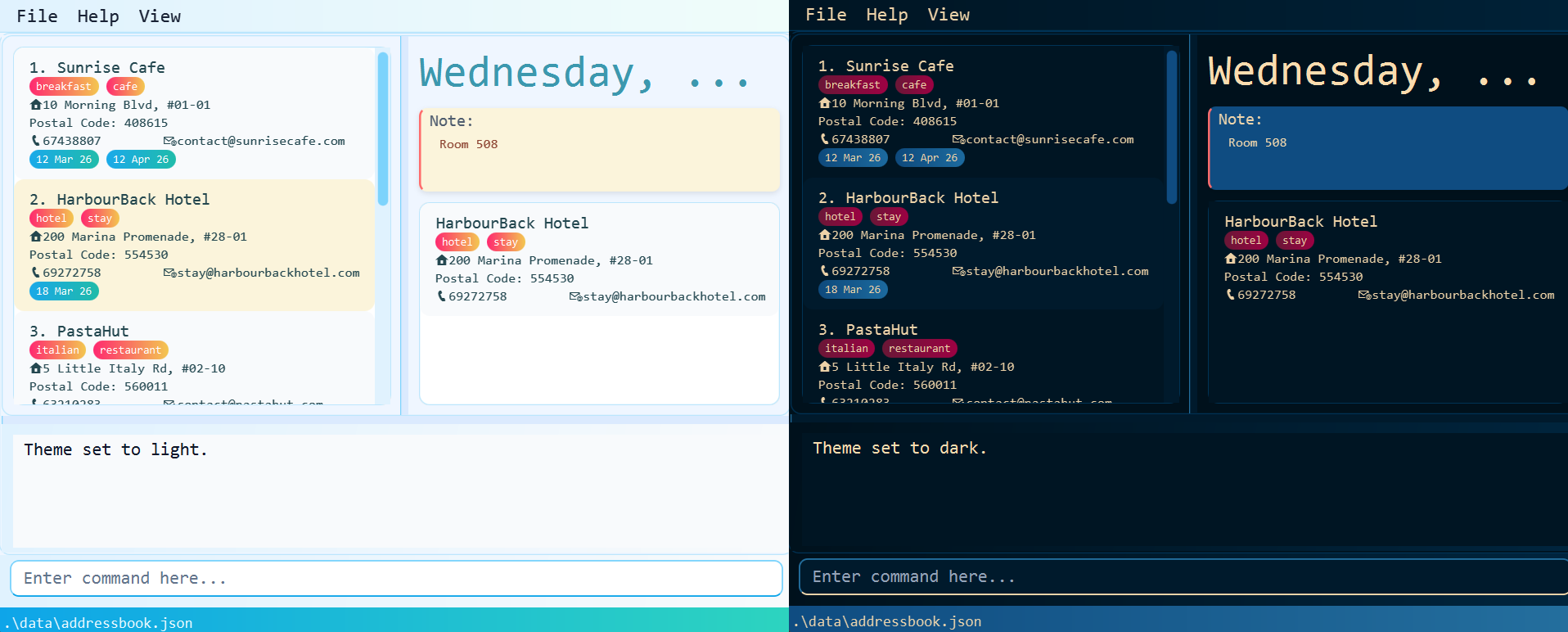
Format: theme THEME_NAME
- Use
theme lightandtheme darkto switch to light and dark mode respectively. - The selected theme is saved and restored the next time the app starts.
clear - Clearing all entries
Clears all data from the AddressMe, including all locations and notes.
Format: clear
 Caution:
If you need to start fresh, consider backing up your data file first (see Data Management).
Always remember you can undo!
exit - Exiting the program
Closes AddressMe. Your data is saved after relevant commands; no need to manually save.
Format: exit
4. Command summary
| Action | Format | Examples |
|---|---|---|
| Add | add n/NAME [p/PHONE_NUMBER] [e/EMAIL] [a/ADDRESS] [c/POSTAL_CODE] [d/DATE]... [t/TAG]... |
add n/Nomad Hub p/98765432 e/hi@nomad.sg a/12 Tanjong Pagar t/coworking |
| Clear | clear |
clear |
| Delete | delete INDEX [MORE_INDEXES]... |
delete 3 or delete 1 2 3
|
| Edit | edit INDEX [n/NAME] [p/PHONE_NUMBER] [e/EMAIL] [a/ADDRESS] [c/POSTAL_CODE] [d/DATE]… [d+/DATE]… [d-/DATE]… [t/TAG]… [t+/TAG]… [t-/TAG]… |
edit 2 n/Happy Bistro e/contact@happybistro.com d+/e-friday |
| Exit | exit |
exit |
| Find | find [KEYWORD] [MORE_KEYWORDS] [n/NAME] [p/PHONE] [e/EMAIL] [a/ADDRESS] [c/POSTAL_CODE] [t/TAG]… [d/DATE]… |
find n/Cafe t/Halal d/3/4/26 |
| List | list |
list |
| Note |
note n/NOTE d/DATE / note d-/DATE
|
note n/Bring water d/2026-04-12, note n/Weekly reminder d/e-Sunday, note d-/2026-04-12
|
| Plan |
plan DATE or plan
|
plan 23/9 |
| Shortcut |
shortcut set ALIAS COMMAND_WORD / shortcut remove ALIAS / shortcut list
|
shortcut set a add, shortcut remove a, shortcut list
|
| Theme | theme THEME_NAME |
theme light or theme dark
|
| Undo | undo |
undo |
| Redo | redo |
redo |
| Help |
help / help COMMAND_WORD / help -ug
|
help, help add, help -ug
|
5. CLI Power Features
Command History
All commands you type during a session are stored. While clicked into the command box:
- Press the
UParrow to scroll back through previous commands. - Press the
DOWNarrow to move forward in history.
Example: After entering list and find Cafe into the CLI, pressing UP recalls find Cafe. Pressing UP again
recalls list.
This makes repeating your most-used commands extremely fast.
Autocomplete
Press Tab while typing a command to autocomplete it.
- Autocomplete is case-insensitive.
- If multiple commands match (e.g. e matches both
editandexit), AddressMe fills to the longest common starting letters.
Examples:
-
a+[Tab]→add -
e+[Tab]→e(ambiguous: edit / exit) -
ex+[Tab]→exit
6. Data Management
Automatic Saving
Your data is saved to disk automatically after every command that changes it. You do not need to save manually.
Location data is stored at: [home folder]/data/addressbook.json
Shortcuts are stored at: [home folder]/data/shortcut.json
Editing the data file directly
Advanced users may edit the JSON file directly using any text editor. This can be useful for bulk imports when relocating to a new city.
Edit with Care:If the file format becomes invalid, AddressMe will discard all data and start fresh on the next launch. Always make a backup copy before editing the file. Values outside acceptable ranges may cause unexpected behaviour.
Transferring Data to Another Device
Install AddressMe on the new device, run it once to generate the data folder, exit the application, then replace any .json files with your existing data files from the old device.
7. FAQ & Known Issues
Frequently Asked Questions
Q: How do I move my data to a new laptop?
A: Install AddressMe on the new device, run it once, then copy all the .json files (found in the folder labelled “ data”) from the old device into the new device’s data folder, replacing the files that were created.
Q: Will my shortcuts and themes persist after I close AddressMe?
A: Yes. Your shortcuts are saved in shortcut.json in the data folder, and your theme is saved in preferences.json, all of which will be restored the next time you launch the app.
Q: Can I have the same location listed multiple times?
A: No. Duplicates are checked when you add or edit a location. Locations are considered the same by the following:
- Postal code and address if both locations have these fields
- Address if both locations have addresses, but either does not have a postal code
- Name if either location has no address
Known Issues
Multiple Monitors: If you move AddressMe to a secondary screen and later disconnect that monitor, the application
window may open off-screen.
Fix: delete preferences.json in your home folder before relaunching.
Help Window: If the Help window is minimised and you run help -ug again, no new window will appear.
Fix:
manually
restore the minimised Help window from your taskbar.
——————————————————————————————————————–